
Manav Sampada UP eHRMS: Login, Leave, Salary Slip & Service Book (2026 Guide)
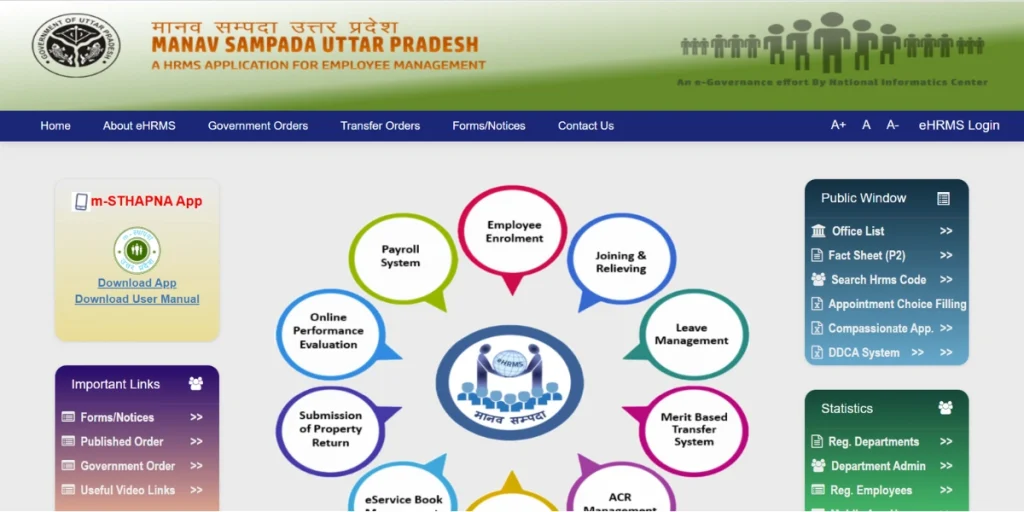
If you work for the Uttar Pradesh government as a teacher, a health worker, a clerk, or an officer the Manav Sampada (eHRMS) portal is now the single place where your whole service life is managed online. The leave that once needed a paper file, the transfer order you had to chase across desks, the salary slip you collected from the office all of it now happens in a few clicks at ehrms.upsdc.gov.in.
This guide is built to be genuinely useful, not just a list of buttons. Along with every step, you will find the small, real-world details that trip people up the exact default password format, the true reason an OTP never arrives, and how to keep a leave request from being rejected. Read it once and you will rarely need to ask anyone for help again.
Disclaimer: manavsampada.com.co is an independent help guide, not a government website. Use only the official portal ehrms.upsdc.gov.in for all real services. We never ask for your password, OTP, or Employee ID.
What is the Manav Sampada Portal?
Manav Sampada, also written as eHRMS (Electronic Human Resource Management System), is a digital HR platform developed by the National Informatics Centre (NIC). It was created to remove the slow, paper-heavy processes that government employees once dealt with and replace them with a fast, transparent, online system.
In Uttar Pradesh, the portal has become essential for lakhs of employees across departments. Every staff member gets a unique digital identity that stays with them for their entire service period, and almost every routine HR task leave, salary, transfers, service records is now handled through this one platform. Below, you will find clear steps and answers for each of those tasks.
Services Available on Manav Sampada UP (eHRMS)
Once your account is active, the portal lets you do far more than just log in. The main services include:
- Employee login and profile management view and request changes to your personal, address, and family details.
- Online leave application and trackingapply for casual, earned, medical, maternity, and other leave, and follow the status in real time.
- e-Service Book your verified digital service record (appointments, promotions, transfers, pay).
- Salary slip / pay details download month-wise salary slips as PDFs.
- Transfer and posting orders view and download issued orders.
- Promotion and increment records keep track of your career progression.
- Fact Sheet (P2) report a one-click summary of your full service data.
- Annual Confidential Report (ACR) submit and track appraisals online.
- Document upload and verification attach certificates and proofs to your record.
- Departmental notices and updates stay informed about official communications.
- Mobile app services apply for leave, check pay slips, and view your service book on the go.
Eligibility: Who Can Use the Manav Sampada UP Portal?
Access to the portal is limited to genuine government employees. You can use Manav Sampada UP if:
- You are a government employee of Uttar Pradesh.
- You have a valid Employee ID / User ID issued by your department.
- Your service record has been registered in the portal by your department’s nodal/HR officer there is no self-registration.
- Your department is integrated with the eHRMS UP system, so its services are enabled for you.
- You hold valid login credentials (User ID and password).
The portal is mainly for active, currently working employees. In some cases, retired pensioners are given limited, view-only access so they can see their service records and download pension-related documents, depending on the department’s policy.
How to Log In to Manav Sampada UP Step by Step
Logging in takes less than a minute. Follow these steps carefully, because most login problems come from a single field being filled in wrong.
Step 1
Open the official portal. Go to ehrms.upsdc.gov.in. Before you type anything, check that the address contains upsdc.gov.in and shows the padlock (🔒) icon. This one habit protects you from fake, look-alike websites that try to steal credentials.
Step 2
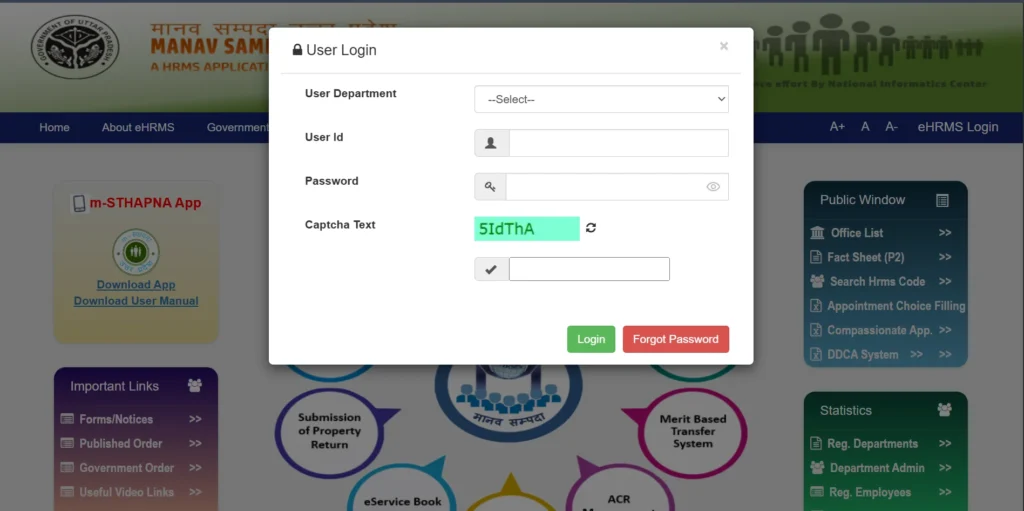
Click “eHRMS Login”. The login link sits in the top-right corner of the homepage. Click it to open the login window.
Step 3
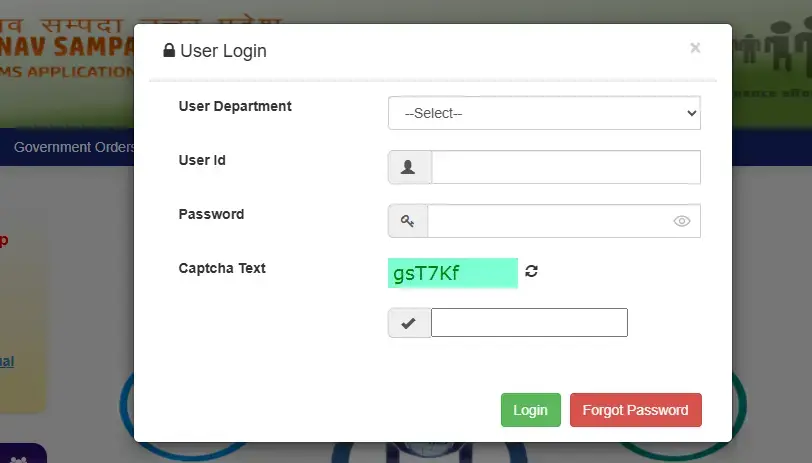
Select your department. From the dropdown, choose your correct department. For example, Basic Education teachers select Directorate of Basic Education. Selecting the wrong department is one of the most common reasons an ID “won’t open,” so double-check this.
Step 4
Enter your User ID and password. Type your Employee ID and your password. If you are logging in for the first time, use the default password format explained in the next section.
Step 5
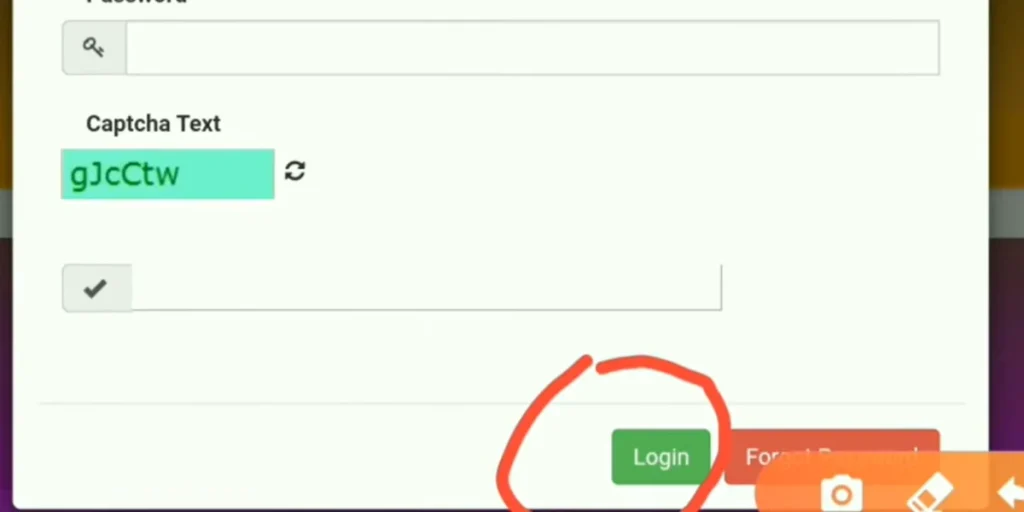
Type the CAPTCHA and click Login. The CAPTCHA is case-sensitivecopy the capital and small letters exactly as shown. Then click the green Login button.
Step 6 Verify the OTP.
An OTP (one-time password) is sent to your registered mobile number. Enter it and click Validate. Your eHRMS dashboard will open, and from there you can reach leave, service book, salary slip, transfer details, and more.
Remember: an OTP is sent every single time you log in. That is why your correct mobile number must be registered on the portal if it is not, you simply cannot get in.
Manav Sampada Default Password: The Correct Format
This is where many guides give wrong information (some claim it is your date of birth in DDMMYYYY). The real default password is built like this:
First 3 letters of your name (in CAPITALS) + your 4-digit birth year.
- Name Rajesh, born 1981 → password RAJ1981
- Name Vikas, born 1976 → password VIK1976
Two conditions decide whether this default actually works:
- It works only if you have never used “Forgot Password” even once. After a single reset, the default is gone forever and you must use the new password you set.
- If your name is misspelled on the portal, the password is built from the first three letters of that wrong spelling not your real name. So always go by exactly how your name is recorded in the system.
First-Time Login: What to Do
Your first login matters, because this is when your account is properly set up. Right after you log in for the first time:
- Create a strong new password at least 8 characters, mixing a capital letter, a small letter, a number, and a special character (for example,
Rajesh@123). - Verify your mobile number and email, since these are used for OTPs and important alerts.
- Check your service details joining date, designation, and office code. If anything is wrong, do not try to edit it yourself; request the correction through your DDO / BRC office with supporting proof.
Completing these steps keeps your account secure and ensures you receive real-time updates.
How to Get / Find Your Manav Sampada Employee ID
If you are a newly appointed employee or have never logged in, finding your Employee ID is the very first step. You did not create it yourself your department issued it so here is how to locate it.
Method 1
Ask your nodal officer (most reliable). Every school and district has a designated Manav Sampada nodal officer. They can give you your Employee ID, confirm that your profile is active, and guide you through your first login. To reach them, contact your school principal or the district education office.
Method 2
Check your official documents. Your Employee ID is printed on several records you already have:
- Your appointment letter or joining order (usually in the header or reference area).
- Your government ID card, near your photograph.
- Your salary slips, in the employee-details section.
- The first page of your service book, alongside your joining date and designation.
Method 3
Use the public Fact Sheet report. On the portal’s public reports, open the Employee Fact Sheet / Advance Search, select your department and district, search By Employee Name, and click View Report. Your ID will appear in the result.
Tip: if no result shows, your name may be spelled slightly differently in the records. Try one or two alternate spellings and it will usually appear.
Documents Required for Manav Sampada UP
Keeping the right documents ready saves you from rejected applications and repeated trips to the office.
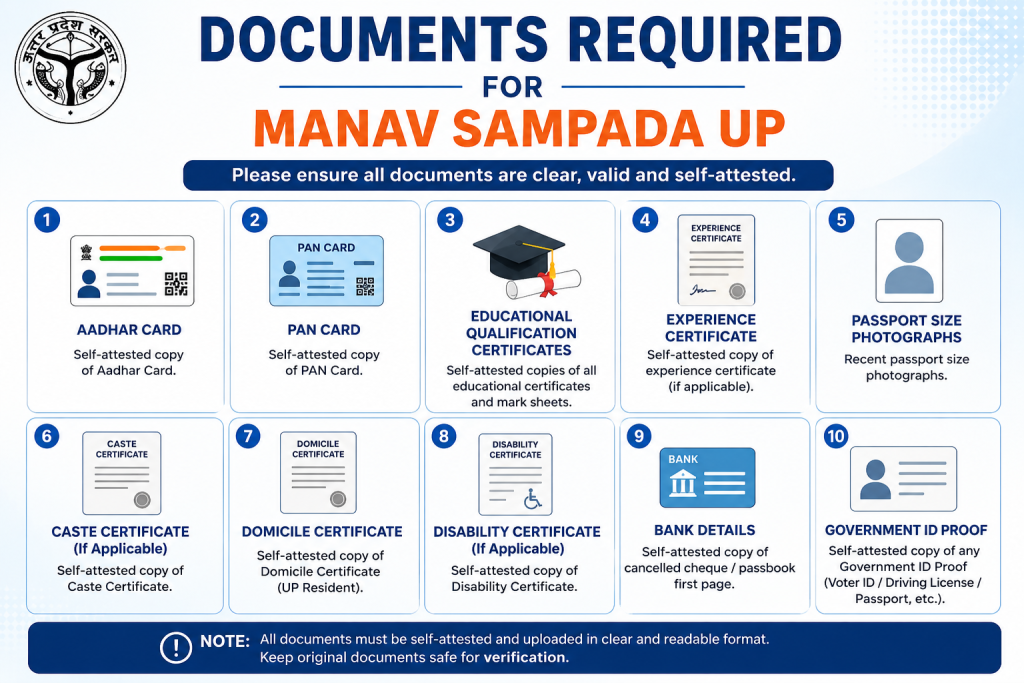
Basic documents (for profile and verification):
- Employee identity proof issued by your department
- Aadhaar card (recommended for verification)
- Bank account details / passbook scan
- A registered personal email and mobile number
Documents to upload for leave (depending on leave type):
- Medical Leave a registered doctor’s/RMP certificate (with registration number) plus supporting medical reports.
- Maternity Leave hospital admission proof and the related maternity documents.
- Child Care Leave (CCL) the child’s birth certificate and a school/doctor note for age eligibility, with an application signed by your head and an affidavit.
- Study Leave an official admission letter from a recognised institution and proof of the course duration.
Other supporting documents (useful for your record and promotions):
- Educational certificates 10th, 12th, graduation degree/marksheets
- Professional qualification certificates such as B.Ed or BTC
- PAN card, driving licence, or voter ID
Important: leave applications are often rejected automatically when a required document is missing. Prepare the correct PDF before you apply (and keep each file under 2 MB so it uploads).
How to Apply for Leave on Manav Sampada: Step by Step
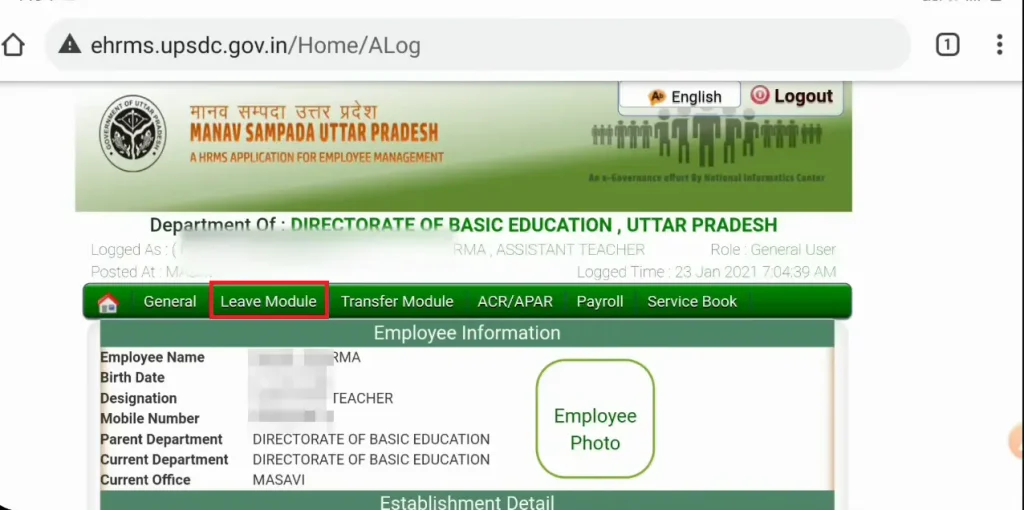
Before your very first application, you must add a Reporting Officer once: go to Online Leave → Add Reporting Officer, enter your officer’s details (for example, your BEO), and save. The portal cannot forward a leave request without this, so it is the step people most often forget.
Step 1
Log in to the portal as shown above.
Step 2
Open the leave section. On the dashboard, click Online Leave Application, then Apply Leave.
Step 3
Select the leave type. Choose casual, earned, medical, and so on. The system automatically calculates the total number of days once you pick the dates.
Step 4
Enter the dates and reason. Select the From and To dates, write a short, clear reason, and add the address where you will be during leave.
Step 5
Upload a document (if the leave type needs one) as a PDF under 2 MB.
Step 6
Review and submit. Check every field, then click Submit. You will receive a confirmation SMS, and the request automatically reaches your reporting officer for approval.
How to Check Your Leave Application Status
After applying, you can follow your request from the same portal: go to Leave → Leave Status / Leave History. Each status tells you something specific and points to a clear next step.
| Status | Meaning | What you should do |
|---|---|---|
| 🟡 Pending | Waiting for your officer’s approval | Follow up with the reporting officer after 48 hours |
| 🟢 Approved | Leave sanctioned | Save or print the sanction record |
| 🔴 Rejected | Application turned down | Read the reason in the “Remarks” column, fix it, and re-apply |
View and Download Your Leave Balance
To see how many days you have left:
- Log in to the portal at ehrms.upsdc.gov.in.
- Open your dashboard and go to the Leave section.
- Click Leave Balance / Leave Account.
- Your available, used, and remaining leave will be shown.
- Click Download / Print to save the balance as a PDF for your records.
How to Download Your Salary Slip / Pay Details
To get your salary slip from the portal, log in with your User ID and password, then open the Salary / Pay Slip (or Employee Services) section. Select the required month and year, and click View or Download to save it as a PDF.
If the option is not visible or a month is missing, that month’s data may not be updated yet wait a little, or contact your department’s HR or accounts section.
Transfer and Posting Order View
To check your transfer or posting orders, log in and go to Employee Services or the Transfer / Posting section. Click any order to open or download it as a PDF.
If no order appears, it simply means either no transfer has been issued for you, or your department has not yet updated the details in the system.
How to View Your Service Book
Your e-Service Book is a verified digital record of your entire employment history. After logging in, open the Service Book section to view your personal, appointment, promotion, and pay details, along with entries for leave, transfers, and postings. You can view or download these records where the option is enabled.
If you spot any error, report it to your department’s HR or nodal officer for correction service book entries cannot be edited by employees directly.
m-STHAPANA Mobile App: Manav Sampada in Your Pocket
The m-STHAPANA app brings the main portal services to your smartphone, so you can apply for leave, check pay slips, and view your service book on the go.
- Android: open the Google Play Store, search for the official m-STHAPANA UP government app, confirm the publisher is the UP government/UPSDC, and install it.
- iOS: open the Apple App Store, search for the same official app, verify the publisher, and download.
Safety note: only ever install m-STHAPANA from the official Google Play Store or Apple App Store. Never use a third-party APK or a link sent over WhatsApp or SMS those are common phishing traps.
Benefits of Manav Sampada UP (eHRMS)
The portal has modernised government HR in several practical ways:
- Keeps all employee records in one centralised, secure place.
- Lets you apply for leave online and track your balance in real time.
- Gives instant digital access to monthly salary slips.
- Allows you to update personal details like contact and bank information.
- Brings transparency to transfers, promotions, and appointments.
- Speeds up payroll and reduces errors and delays.
- Works on both the web portal and the m-STHAPANA app for access anywhere.
- Keeps employee data secure and confidential.
5 Common Mistakes to Avoid
A few small errors cause most of the login and leave problems people face:
- Reusing an old CAPTCHA. Every time you change a field, type a fresh CAPTCHA, or you will keep getting “invalid.”
- Confusing O with 0, and l with I. This is the single most common typing slip in both the CAPTCHA and the password.
- Trying the default password after a reset. Once you have reset it even once, the default will never work again.
- Applying for leave without adding a reporting officer. The request will not be forwarded at all.
- Uploading a PDF larger than 2 MB. It simply will not upload compress the file first.
Security Tips for Safe Use
- Use only the official site ehrms.upsdc.gov.in, and look for the padlock icon.
- Never share your password or OTP with anyone no genuine official will ever ask for them.
- Avoid logging in on public or shared computers; if you must, log out fully and clear the browser.
- Keep your registered mobile number up to date so you always receive your OTP.
Frequently Asked Questions (FAQs)
Conclusion
The Manav Sampada UP portal has turned slow, paper-based government HR into a fast, transparent, online experience. From applying for leave to downloading a salary slip or checking a transfer order, almost everything can now be done from your phone or computer saving time, effort, and unnecessary office visits.
The key is knowing the small details: the correct default password, a registered mobile number for OTPs, the right documents before you apply, and a reporting officer added in advance. Get those right, and the portal becomes one of the easiest parts of your working life. Bookmark this page so the next time you need to log in, apply, or download something, the answer is right here.